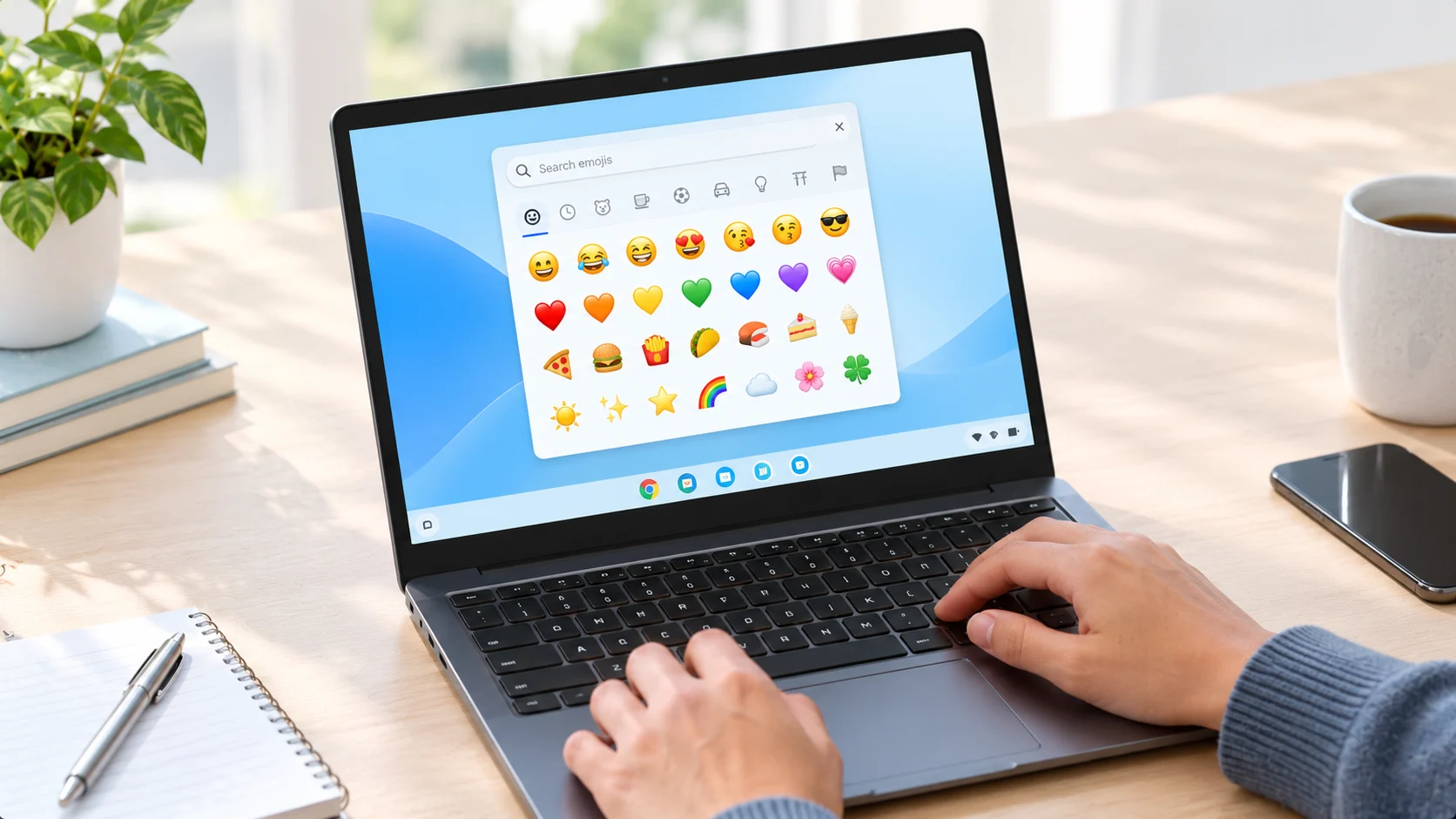
The Chromebook emoji shortcut is
Search+Shift+Spaceon supported ChromeOS versions and keyboard layouts. You can also right-click a text field and select the emoji option when available.
The easiest way to insert emojis on a Chromebook is to open the built-in emoji picker using a keyboard shortcut. On supported Chromebooks, press Search (or Launcher) + Shift + Space while your cursor is in a text field. An emoji panel should appear, letting you choose a smiley, heart, symbol, or other character to insert into your message.
You can use emojis in emails, Google Docs, social media posts, and chats. If the shortcut does not work, your ChromeOS version, keyboard layout, or app may affect availability, so there are other ways to open the emoji picker.
How to Open the Emoji Keyboard on a Chromebook
Follow these steps to insert an emoji using the keyboard shortcut.
- Open an app or website where you can type, such as an email, document, or chat.
- Click inside the text field where you want the emoji to appear.
- Press Search + Shift + Space together. On some keyboards, the Search key is labeled or represented by the Launcher key.
- Browse the emoji picker or use its search bar to find a specific emoji.
- Select the emoji you want to insert.
The emoji should appear at your cursor’s position. This shortcut is documented in Google’s Chromebook help resources.
What Is the Search or Launcher Key on a Chromebook?
The Search or Launcher key is a special key found on many Chromebook keyboards. It usually sits in the bottom row, where the Caps Lock key would appear on a traditional keyboard.
Depending on your Chromebook, it may display a magnifying glass or a Launcher symbol. Press this key together with Shift and Space to open the emoji picker.
If you use an external Windows or Mac keyboard, the Windows key or Command key can serve as the Search key for Chromebook shortcuts, according to Google.
Other Ways to Insert Emojis on a Chromebook
If the keyboard shortcut is inconvenient or unavailable, try one of these alternatives.
1. Right-Click to Open the Emoji Picker
This is a simple mouse or touchpad method.
- Open a text field.
- Right-click inside it.
- Select Emoji from the menu.
- Browse or search for the emoji you want.
- Click the emoji to insert it.
Google documents this as an alternative to the keyboard shortcut.
2. Use the On-Screen Keyboard
The on-screen keyboard is useful on Chromebooks with touchscreen support.
- Open the on-screen keyboard using your Chromebook’s available settings or controls.
- Select the text field where you want to type.
- Tap the Emoji icon on the on-screen keyboard.
- Choose an emoji to insert it.
The exact controls can vary depending on your device and settings.
3. Use Quick Insert on Supported Chromebooks
Some newer Chromebook keyboards include a Quick Insert key that opens a menu for adding content to a document or chat.
To use it:
- Open a compatible document or chat.
- Press the Quick Insert key.
- Browse the menu or search for the content you want.
- Select an emoji or other available item and press Enter.
If your keyboard does not have a dedicated Quick Insert key, Google documents Launcher + F or Google + F as alternatives on supported devices.
How to Find a Specific Emoji on Chromebook
You do not need to scroll through every emoji category to find the one you want.
- Open the emoji picker with Search + Shift + Space.
- Select its search bar.
- Type a word describing the emoji, such as
heart,smile,pizza, orcat. - Browse the matching results.
- Select your preferred emoji.
The picker also provides categories for smileys, people, animals, food, travel, activities, objects, symbols, and flags. Available options may vary by ChromeOS version.
Chromebook Emoji Keyboard Shortcuts at a Glance
| Action | Shortcut or Method |
|---|---|
| Open emoji picker | Search + Shift + Space |
| Open emoji menu with a mouse | Right-click a text field and select Emoji |
| Insert an emoji | Select it from the picker |
| Find a particular emoji | Type its name in the picker’s search bar |
| Open Quick Insert | Press the Quick Insert key on supported keyboards |
| Use emojis on a touchscreen | Open the on-screen keyboard and tap Emoji |
Why Is the Chromebook Emoji Shortcut Not Working?
If Search + Shift + Space does not open the emoji picker, try these troubleshooting steps.
Check that the cursor is inside a text field. Click a message box, document, or other editable area before pressing the shortcut.
Confirm which key acts as Search. Your keyboard settings may assign a different function to the Search or Launcher key. You can review these settings under Settings → Device → Keyboard and inputs.
Try the right-click method. Right-click a text field and look for the Emoji option. This helps you check the picker is available even when the shortcut is inconvenient.
Check your keyboard layout. External keyboards and international layouts can behave differently from the standard Chromebook keyboard.
Restart or update your Chromebook if needed. If the picker remains unavailable, check ChromeOS settings and updates or consult your Chromebook manufacturer’s support resources.
FAQs
What is the emoji shortcut on Chromebook?
The standard shortcut is Search + Shift + Space. On supported Chromebooks, it opens the emoji picker so you can select an emoji, symbol, or other available item.
How do I type emojis on a Chromebook without a mouse?
Place your cursor in a text field and press Search + Shift + Space. Browse the emoji picker and select an emoji. This lets you insert emojis without using your mouse.
Can I search for emojis by name on Chromebook?
Yes. Open the emoji picker and enter a word such as heart, smile, or coffee in the search bar. Choose the matching result.
Does the emoji shortcut work in Google Docs and Gmail?
The shortcut is designed to open the ChromeOS emoji picker for text entry. A particular emoji can be inserted may depend on the application, text field, and device configuration.
Can I use emojis on a Chromebook with a touchscreen?
Yes. You can use the on-screen keyboard and select its Emoji option to insert emojis into compatible text fields.
How do I copy and paste an emoji on Chromebook?
If you already have an emoji in a message or document, select it and press Ctrl + C to copy it. Place your cursor where you want to insert it, then press Ctrl + V to paste it. You can also use the emoji picker to insert emojis directly.
Conclusion
The Chromebook emoji shortcut makes typing emojis quick and convenient. Press Search + Shift + Space to open the emoji picker, search for the character you need, and select it to insert it into your text. If the shortcut does not work, try right-clicking a text field or using the on-screen keyboard. Once you know these options, adding emojis to messages, schoolwork, emails, and documents becomes much easier.
See Also More:
- Palm Tree Emoji | What It Says About Summer, Travel & Relaxation In 2026
- Emoji Sad Meaning | How to Understand Sad Faces in Messages In 2026
- I Love You Emoji Meaning | How to Express Love, Care & Affection In 2026