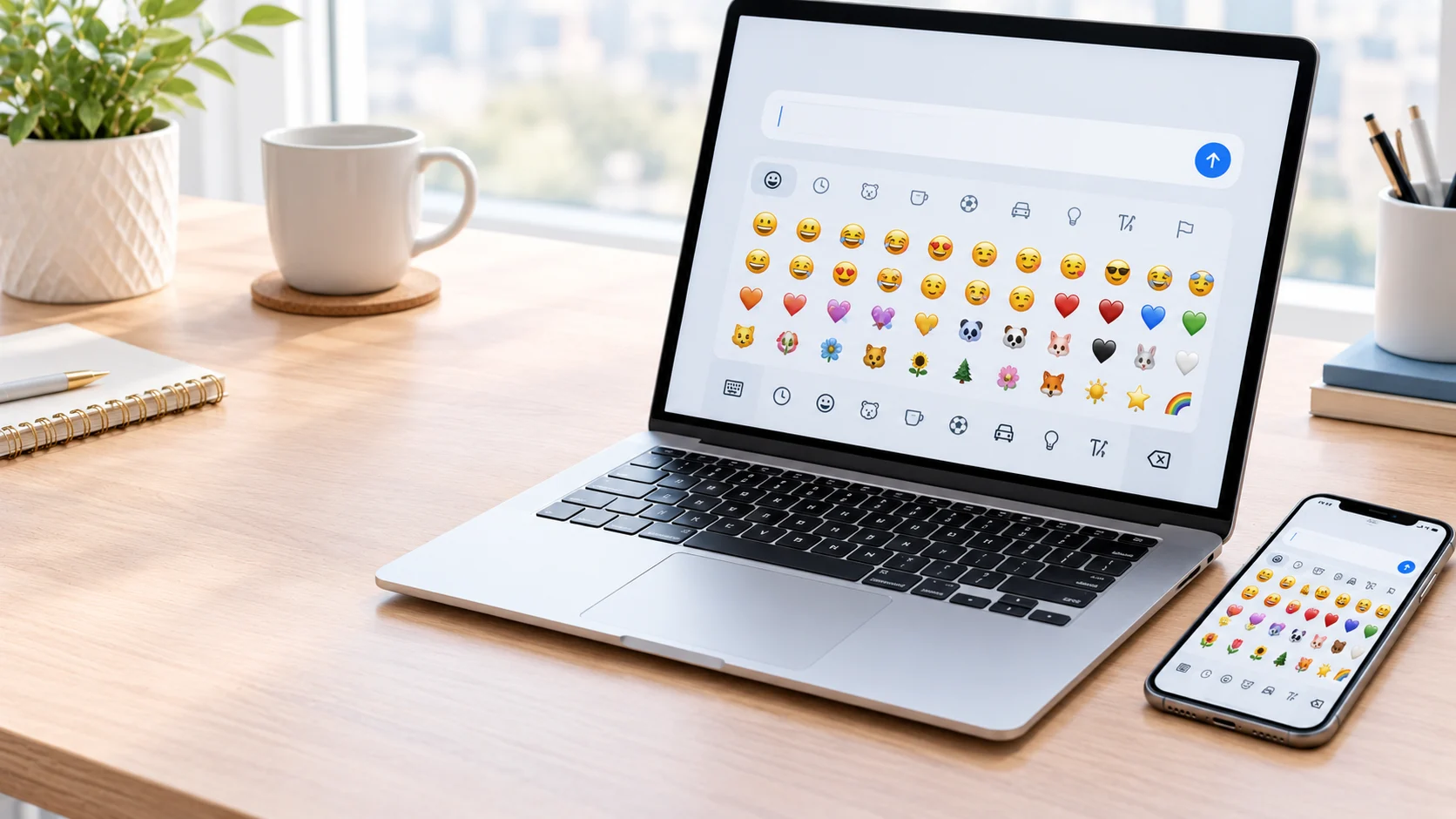
To open the emoji keyboard on Windows, press Windows + . (period). On Mac, press Control + Command + Space. On iPhone, tap the emoji key on your keyboard. On Android, tap the emoji or smiley-face button in your keyboard app.
Knowing how to open the emoji keyboard makes it easier to add emojis to text messages, emails, social media posts, and documents. The steps depend on which device and keyboard you use, but most devices provide a built-in way to access emojis without downloading extra software.
Windows and Mac computers offer convenient keyboard shortcuts, while iPhones and Android phones usually display an emoji button directly on the on-screen keyboard. This guide explains how to open the emoji keyboard on different devices, find specific emojis, and troubleshoot common problems when the emoji button or shortcut does not work.
How to Open the Emoji Keyboard on Windows
Windows 10 and Windows 11 include a built-in emoji panel that lets you insert emojis, GIFs, and other symbols while typing.
Method 1: Use the Keyboard Shortcut
Windows 10 and Windows 11
⊞ Windows + . (Period)
- Open an app where you can type, such as Notepad or a messaging app.
- Click inside the text field.
- Press the Windows key + period (.) together.
- The emoji panel should appear.
- Select an emoji or type a word into the search field.
You can also try Windows + ; (semicolon) to open the emoji panel.
Method 2: Search for an Emoji
After opening the panel, type a word such as smile, heart, or cat into the search field. Select the emoji you want, and Windows will insert it at your cursor.
For example:
smile→ 😀heart→ ❤️cat→ 🐱
The available results depend on your Windows version and supported emoji set.
How to Open the Emoji Keyboard on Mac
Mac computers have a built-in character viewer for emojis and symbols.
Use the Mac Keyboard Shortcut
Control + Command + Space
- Open a text field in an app.
- Press Control + Command + Space together.
- The emoji and symbols viewer should open.
- Browse the categories or search for an emoji.
- Click an emoji to insert it into your text.
You can also open the viewer from an app’s Edit menu by choosing Emoji & Symbols, where available.
How to Open the Emoji Keyboard on iPhone and iPad
Apple devices include a built-in emoji keyboard. You can access it from apps such as Messages, Mail, and Notes whenever the on-screen keyboard is available.
Steps to Open the Emoji Keyboard on iPhone
- Open Messages or another app with a text field.
- Tap the text field to display the keyboard.
- Tap the smiley-face emoji button or the globe/keyboard-switch button.
- Browse the emoji categories or search for a specific emoji.
- Tap an emoji to insert it into your message.
To return to normal typing, tap the ABC key if it appears, or use the keyboard-switch button.
What If the Emoji Button Is Missing on iPhone?
You may need to add the Emoji keyboard manually.
- Open Settings.
- Tap General.
- Select Keyboard.
- Tap Keyboards.
- Choose Add New Keyboard.
- Select Emoji.
Return to your messaging app and check the emoji button is available.
How to Open the Emoji Keyboard on Android
Android phones commonly provide emoji access through the on-screen keyboard. The exact button placement depends on you use Gboard, Samsung Keyboard, or another keyboard app.
Open Emojis With Gboard
- Open a messaging app or another app where you can type.
- Tap the text field to open Gboard.
- Tap the emoji icon, usually shown as a smiley face.
- Browse the categories or use the emoji search feature if available.
- Tap the emoji you want to insert.
Google’s Gboard supports inserting emojis and GIFs from the keyboard. The exact controls may vary with the version and settings.
Open Emojis on a Samsung Galaxy Phone
On many Samsung Galaxy phones, the emoji option is available in the Samsung Keyboard toolbar.
- Open Messages or another app with a text field.
- Tap the message box to display Samsung Keyboard.
- Look for the emoji icon in the toolbar.
- If it is not visible, tap the three-dot Expand toolbar button.
- Select Emojis and tap the emoji you want.
The layout can vary depending on your Galaxy model, software version, and keyboard settings.
How to Open the Emoji Keyboard on Chromebook
Chromebooks have a built-in emoji picker that can also display symbols, emoticons, and GIFs in supported text fields.
Use the Chromebook Keyboard Shortcut
- Click inside a text field.
- Press Search (or Launcher) + Shift + Space.
- Browse the emoji categories or search for an emoji.
- Click the emoji to insert it into your text.
You can also right-click inside a supported text field and select Emoji from the menu.
How to Find a Specific Emoji Quickly
Once the emoji keyboard is open, searching is usually faster than browsing every category.
- Open the emoji picker on your device.
- Select the search field, if available.
- Type a word that describes the emoji, such as
heart,laugh,dog, orbirthday. - Review the matching results.
- Select the emoji you want to use.
For example, searching for heart may show ❤️, 💕, 💖, and other heart emojis. The available results depend on the device, operating system, and keyboard app.
What to Do If the Emoji Keyboard Is Not Opening
If the emoji keyboard does not appear, try these simple troubleshooting steps.
- Check the text field: Click inside a message box or document before using the shortcut.
- Try the alternative Windows shortcut: Press Windows + semicolon (;) if Windows + period does not work.
- Check your phone’s keyboard: On a mobile device, look for the smiley-face button or expand the keyboard toolbar.
- Enable the Emoji keyboard on iPhone: Go to Settings → General → Keyboard → Keyboards → Add New Keyboard → Emoji.
- Restart the app: Close and reopen the app where you want to type.
- Update your device: Install available software updates if the built-in emoji feature continues to malfunction.
Menu names and available options may vary by device and software version. Microsoft’s, Apple’s, Google’s, and Samsung’s support guides provide device-specific instructions.
Can You Open the Emoji Keyboard Without a Keyboard Shortcut?
Yes. On most smartphones, tap a text field and select the emoji button on the on-screen keyboard. On Samsung devices, you may need to expand the keyboard toolbar to reveal the emoji option.
On a Chromebook, right-clicking in a supported text field and choosing Emoji is another option. On a Mac, you can open the character viewer from the Edit menu in supported apps.
FAQs
What is the shortcut to open the emoji keyboard on Windows?
Press Windows + period (.). You can also try Windows + semicolon (;) to open the emoji panel.
How do I open the emoji keyboard on Mac?
Press Control + Command + Space while your cursor is in a text field.
How do I open the emoji keyboard on my phone?
Tap a text field to display the on-screen keyboard, then tap the emoji or smiley-face button. If you cannot see it, check your keyboard settings.
How do I open the emoji keyboard on iPhone if the emoji button is missing?
Open Settings, go to General → Keyboard → Keyboards, select Add New Keyboard, and choose Emoji.
Can I search for emojis by name?
Yes. Many built-in emoji pickers have a search field. Enter a word such as smile, heart, or food to find matching options.
Do I need to download an emoji keyboard?
Usually not. Windows, Mac, iPhone, iPad, and most modern Android devices and Chromebooks have built-in emoji access. The exact features depend on your device and keyboard software.
Conclusion
Opening the emoji keyboard is simple once you know the right shortcut or button for your device. Use Windows + period on Windows, Control + Command + Space on Mac, the emoji button on iPhone and Android, or Search + Shift + Space on Chromebook. If the emoji option is missing, check your keyboard settings before installing another app.
See Also More :
- Teeth Emoji Meaning | Smiles, Dental Care & Everyday Texts In 2026
- Eggplant Emoji | What It Really Means in Texts & Social Media In 2026
- Fox Emoji | What It Means in Texts, Chat & Social Media In 2026