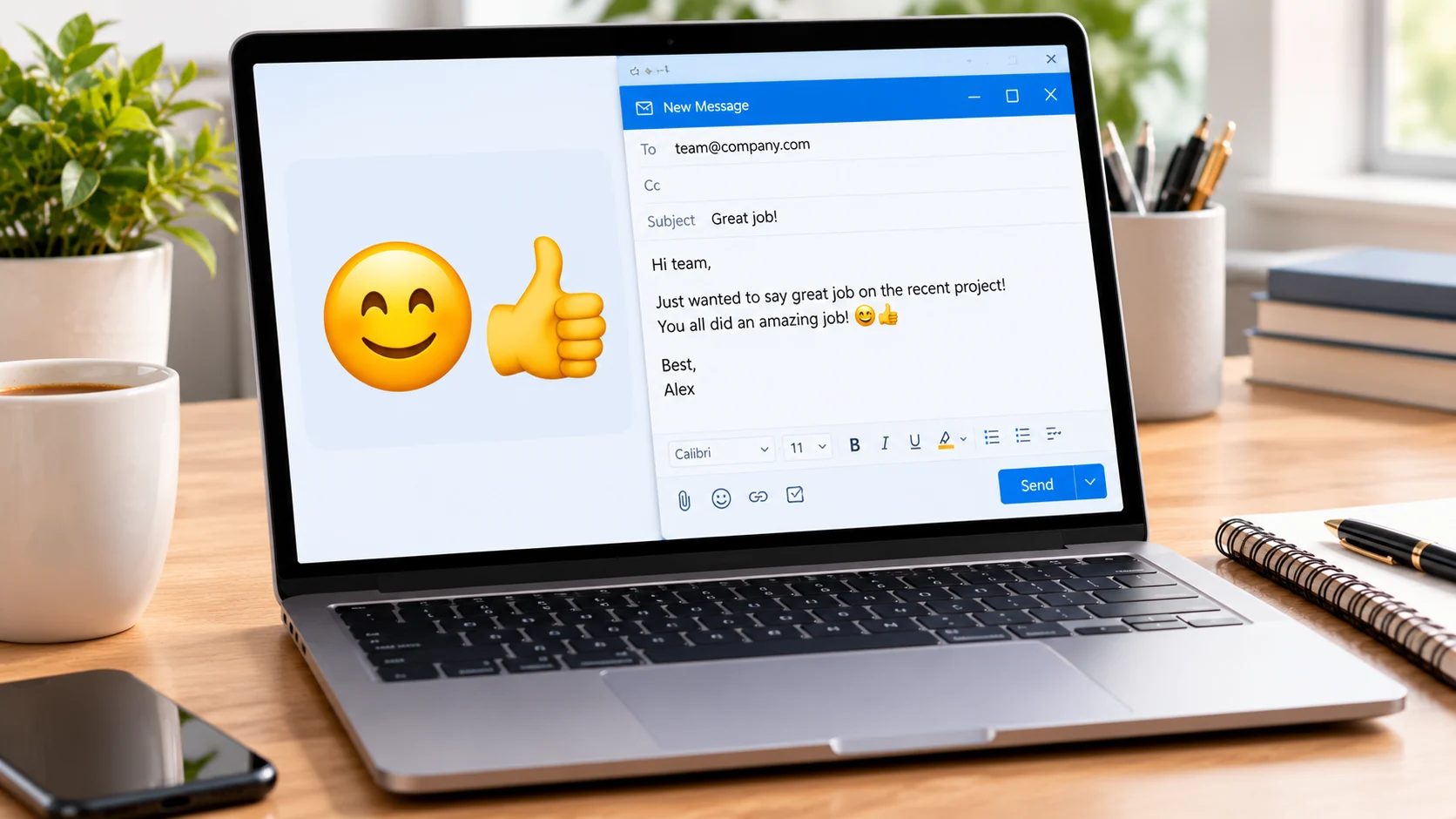
To insert an emoji in Outlook on Windows, place your cursor in the email and press Windows key + . (period). Choose an emoji from the picker. The meaning depends on the emoji and the context of your message.
🙂 Outlook emojis let you add emotion, friendliness, and personality to email messages. You can use smileys, hearts, thumbs-up symbols, and other emoji characters to make your message feel warmer or show a quick reaction.
What Does “Outlook Emoji” Mean?
The phrase “Outlook emoji” can refer to emojis used in Microsoft Outlook emails, the emoji picker available while composing a message, or the meanings of specific emoji characters.
Unlike a special Outlook-only symbol, most emojis are standard Unicode characters. Their appearance can vary depending on the operating system, email app, and device used by the recipient.
For example:
- 😀 expresses happiness or excitement.
- 😊 often conveys warmth, friendliness, or appreciation.
- 👍 commonly signals agreement or approval.
- ❤️ often represents love, care, or strong appreciation.
- 🎉 adds a celebratory tone to good news.
These are common interpretations, not fixed rules. The words surrounding an emoji can change how the message feels.
How to Insert Emojis in Outlook
You can add emojis while writing a new email or replying to a message. The steps depend on which version of Outlook you use.
Outlook on Windows

- Open Outlook and create a new email or reply.
- Click where you want the emoji to appear.
- Press Windows key + . (period).
- Browse the emoji categories or search for a word such as “smile,” “heart,” or “celebration.”
- Select the emoji to insert it into your message.
Microsoft documents this shortcut for supported Outlook desktop versions on Windows 10 and Windows 11.
Outlook on the Web

- Open Outlook on the web and start a message.
- Find the emoji or GIF icon in the message toolbar.
- Open the picker and browse the available emojis.
- Select the emoji you want to add.
The toolbar may look different depending on your Outlook version. If you cannot find the emoji button, check the formatting or additional-options menu.
Outlook on Mac
On a Mac, you can generally open the system character viewer using Control + Command + Space while composing an email. Choose an emoji from the viewer and insert it into your message. Available options may vary with your macOS and Outlook versions.
Common Outlook Emojis and Their Meanings
The best emoji depends on the tone you want to communicate. Here are some useful choices for everyday emails.
| Emoji | Official Name | Common Meaning | Tone | Where or When It Is Used |
|---|---|---|---|---|
| 😀 | Grinning Face | Happiness or excitement | Cheerful | Friendly updates and good news |
| 😊 | Smiling Face with Smiling Eyes | Warmth or appreciation | Friendly | Thank-you messages and casual replies |
| 👍 | Thumbs Up | Agreement or approval | Direct, positive | Confirmations and quick responses |
| ❤️ | Red Heart | Love, care, or strong appreciation | Affectionate | Personal emails and warm messages |
| 😂 | Face with Tears of Joy | Strong amusement | Playful | Jokes and funny conversations |
| 🎉 | Party Popper | Celebration or congratulations | Excited | Achievements, milestones, and announcements |
| 🙏 | Folded Hands | Thanks, a request, or a hope | Respectful or earnest | Gratitude and polite requests |
| 🤔 | Thinking Face | Thought or uncertainty | Reflective | Questions, suggestions, and discussions |
The official emoji names follow Unicode’s emoji reference. The meanings in the table describe common informal use, rather than official definitions of what every message must mean.
Which Emojis Are Best for Professional Emails?
Emojis can make an email feel more personal, but they are not suitable for every situation. Consider your relationship with the recipient and the purpose of the message.
- For a quick confirmation: 👍 can communicate agreement when the conversation is informal.
- For a friendly thank-you: 😊 can add warmth to a short note.
- For congratulations: 🎉 can make a positive announcement feel celebratory.
- For a personal message: ❤️ may communicate care or affection when that tone is appropriate.
- For a formal request: Plain, polite wording is often clearer than adding an emoji.
For job applications, formal complaints, first-time business contacts, or sensitive discussions, it is usually safer to rely on clear words instead of emojis.
Outlook Emoji Examples for Everyday Emails
Here are hypothetical examples showing how emojis can affect the tone of an email.
1. Friendly thank-you
Thanks for sending the details! 😊
Likely meaning: The sender wants to sound warm and appreciative. The smile adds friendliness without changing the main message.
2. Confirming a task
I’ve reviewed the document. 👍
Likely meaning: The sender is signaling approval or acknowledgment. In a formal workplace, a written confirmation may be clearer if the task needs an official record.
3. Sharing good news
We finished the project ahead of schedule! 🎉
Likely meaning: The sender is celebrating an achievement and inviting a positive reaction.
4. Asking for help
Could you take a look when you have a moment? 🙏
Likely meaning: The sender may be trying to sound polite or hopeful. The wording itself matters more than the emoji.
Why Do Outlook Emojis Look Different on Different Devices?
An emoji may look slightly different on Windows, macOS, Android, or iOS because each platform can use its own visual design. A smiling face, for example, might have different eyes, shading, or proportions across devices.
Microsoft also notes that some email programs may display emoticons differently. In some cases, a text-based smiley may appear as characters instead of a colorful image.
To reduce confusion:
- Use familiar emoji characters.
- Keep important instructions in words.
- Avoid relying on an emoji to communicate a deadline, approval, or other business-critical detail.
- Preview important emails when possible.
FAQs
How do I get emojis in Outlook?
On supported Windows versions, press Windows key + . (period) while composing your email. You can then search for or select an emoji. Outlook on the web also offers an emoji picker in the message toolbar
Can I copy and paste emojis into Outlook?
Yes. You can copy an emoji from a source that supports it and paste it into an email. For example, copy 😊 or 👍 and paste it into the message body. Its appearance may differ on the recipient’s device.
Can I use emojis in professional emails?
Yes, when the situation and workplace culture support them. A simple smile or thumbs-up can suit an informal exchange, but formal or sensitive messages are often better without emojis.
Why does an emoji appear as a box or a different symbol?
The recipient’s device, font, or email program may not support the character as expected. Try using a widely supported emoji or remove it if it affects the clarity of the message.
Do Outlook emojis have special meanings?
Usually, the emoji itself has a common meaning that is not unique to Outlook. The sender’s wording, relationship with the recipient, and situation help determine how it should be understood.
Conclusion
Outlook emojis offer a simple way to add warmth, appreciation, or excitement to email. Choose a symbol that matches your message, use it sparingly in professional settings, and keep important information clear in words.
See Also More:
- Hugging Emoji Meaning | From Warm Support to Playful Excitement In 2026
- Flex Emoji Meaning | What It Means in Text, Chats & Conversations In 2026
- Emoji Combo Meaning | How Two or More Emojis Create a New Message In 2026











20 thoughts on “Outlook Emojis Explained | Meanings, Shortcuts & Email Tips In 2026”