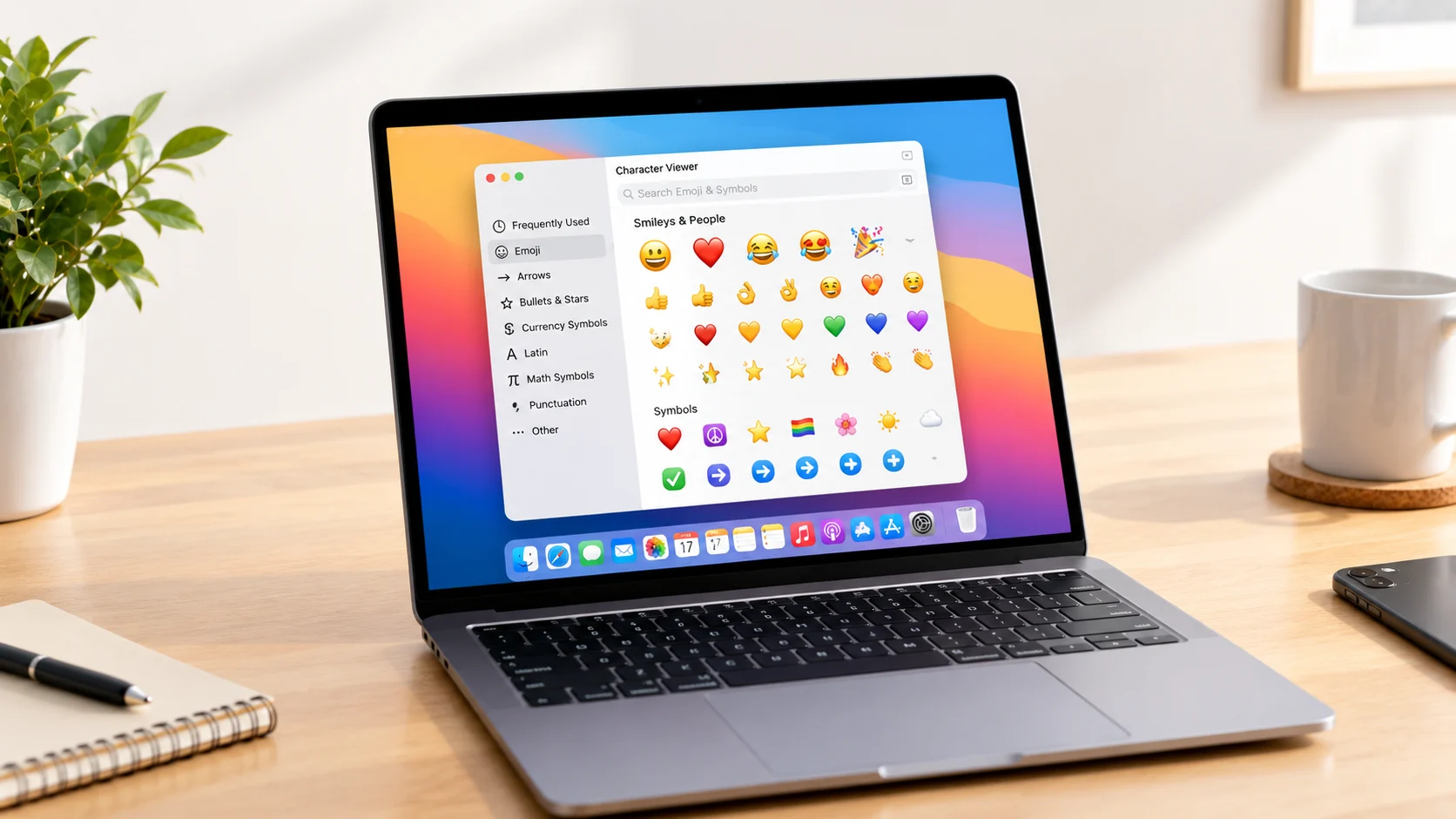
How do you get emoji on Mac? Press Fn/Globe-E or Control-Command-Space to open Character Viewer, search for an emoji, and click it to insert it.
If you want to use an emoji on Mac, the easiest method is to open Apple’s Character Viewer and choose the emoji you need. Press Fn/Globe-E on supported Macs, or use Control-Command-Space to open the Character Viewer, then search for an emoji and click it to insert it into your text.
You can also browse categories, use recently used emoji, save favorites, and copy emoji for use in messages, documents, websites, and other apps.
How to Get Emoji on Mac
macOS includes a built-in Character Viewer for emoji, symbols, accented characters, and characters from other writing systems. You do not need to install a separate emoji keyboard or extension.
Method 1: Use the Mac emoji keyboard shortcut
The fastest option is a keyboard shortcut:
Control + Command + Space
On supported Mac keyboards, you can also press:
Fn/Globe + E
Apple lists these shortcuts for opening Character Viewer, where you can select emoji and other symbols.
Once Character Viewer appears:
- Click inside the app where you want to type.
- Open Character Viewer.
- Search for an emoji or browse the categories.
- Click the emoji.
- The emoji is inserted where your cursor is located.
This works well for messages, notes, documents, email, and many other places where text can be entered.
Method 2: Open Emoji & Symbols from the menu
In some Mac apps, you can also choose:
Edit → Emoji & Symbols
This opens Character Viewer so you can browse or search for the character you want. Apple documents this method for inserting special characters and symbols.
Method 3: Search for an emoji
If you know what you want, searching is usually faster than browsing.
For example, open Character Viewer and search for terms such as:
- laughing
- heart
- basketball
- fire
- thumbs up
- smiling face
- party
Click the result to insert it.
Apple’s Character Viewer supports searches using an emoji’s name or a related word or phrase.
How to Type Emoji on Mac With the Fn or Globe Key
Newer Mac keyboards may have an Fn/Globe key that can open emoji and symbols.
Apple’s current Mac guidance lists Fn/Globe-E as a shortcut for Character Viewer. Depending on your keyboard settings, pressing the Fn or Globe key can also be configured to show emoji and symbols.
If the shortcut does not behave as expected, check your Mac’s keyboard settings. Different input sources and keyboard configurations can affect available shortcuts.
How to Find a Specific Emoji on Mac
Character Viewer gives you several ways to find an emoji.
Search by name
Type a descriptive word into the search field. For example, searching for basketball can help you locate 🏀.
Browse emoji categories
You can browse categories instead of searching. This can be useful when you know the general type of emoji but are not sure of its name.
Use recently used emoji
Character Viewer keeps track of frequently used characters, making it easier to find emoji you have recently inserted.
Add an emoji to Favorites
If you use the same emoji often, you can add it to Favorites in Character Viewer for quicker access. Apple provides a Favorites feature specifically for frequently used characters.
How to Copy and Paste Emoji on Mac
You can also copy an emoji and paste it wherever text is supported.
For example:
😀 ❤️ 👍 😂 🎉 🏀
To copy one:
- Select the emoji.
- Press Command-C.
- Click where you want to use it.
- Press Command-V.
The character itself is standardized through Unicode, while its visual design can vary between platforms and fonts. Unicode maintains the emoji character data and emoji charts used across different implementations.
Can You Use Emoji in Any Mac App?
Emoji can be inserted in many apps that accept text, including messaging, email, notes, documents, and web forms.
However, the exact appearance and available features can depend on the application, font, operating system version, and how that app handles Unicode characters.
An emoji is not simply a picture pasted into your document. Unicode defines emoji characters and sequences, while individual platforms and fonts determine how those characters are displayed.
Related Emoji You Can Type on Mac
The following examples show common emoji you might search for in Character Viewer. Their official Unicode names help distinguish similar characters.
| Emoji | Official Name | Common Meaning | Tone | Where or When It Is Used |
|---|---|---|---|---|
| 😀 | Grinning Face | Happiness or friendliness | Cheerful | Casual messages and positive reactions |
| 😊 | Smiling Face with Smiling Eyes | Warmth or genuine happiness | Warm | Friendly messages and appreciation |
| 😂 | Face with Tears of Joy | Strong amusement | Playful | Jokes, funny messages, and reactions |
| ❤️ | Red Heart | Love, care, or affection | Affectionate | Personal messages and supportive notes |
| 👍 | Thumbs Up | Agreement or approval | Neutral-positive | Quick replies and confirmations |
| 🎉 | Party Popper | Celebration or excitement | Festive | Congratulations, milestones, and good news |
| 🏀 | Basketball | Basketball or the sport | Energetic | Sports conversations and game-related messages |
| 🔥 | Fire | Excitement, praise, or something impressive | Enthusiastic | Reactions, compliments, and casual comments |
These emoji can all be found through Character Viewer, but their meanings are separate from the process of inserting them. Unicode provides standardized emoji characters and annotations, while their visual presentation can differ between systems.
Which emoji should you choose?
The best choice depends on what you want to communicate.
Use 😀 for a straightforward cheerful reaction. 😊 can feel warmer and softer. 😂 is more specifically connected with laughter, while 👍 works well when you simply want to confirm or approve something.
For celebrations, 🎉 is more specific than a general happy face. If you are talking about basketball itself, 🏀 is clearer than using a generic sports-related reaction.
The meaning comes from the emoji and the surrounding message, not just the character by itself.
How to Use Emoji Suggestions While Typing
macOS can also suggest emoji as you type.
For example, Apple explains that typing a commonly used word or phrase and pressing Fn/Globe-E can provide emoji suggestions when supported. You can then select a suggestion and press Return to insert it.
This can be convenient when you already know the word associated with the emoji but do not want to open the full Character Viewer.
Why Does an Emoji Look Different on Mac and iPhone?
The same Unicode emoji can have different artwork on different platforms.
Unicode standardizes the underlying character or sequence, but companies and software platforms can create their own visual designs. As a result, an emoji may look slightly different on a Mac, iPhone, Windows PC, or another device while still representing the same standardized character.
A different design does not automatically mean a different emoji meaning.
Common Problems With Emoji on Mac
The emoji shortcut does not work
Try Control-Command-Space instead of the Fn/Globe shortcut. Apple lists both methods for accessing Character Viewer.
If you use multiple input sources, some keyboard shortcuts can conflict with input-source switching. Apple notes that shortcut behavior can change in these situations.
You cannot find the emoji you want
Try searching with a simpler or more descriptive word. You can also browse the emoji categories instead of relying on one search term.
The emoji appears as a box or does not display correctly
This can happen when an application or font does not properly support a particular Unicode character or sequence. Emoji support can vary by operating system, application, and font.
FAQs
What is the shortcut for emoji on Mac?
The commonly used shortcuts are Control-Command-Space and Fn/Globe-E. Both can open Character Viewer on supported Mac setups.
How do I open the emoji keyboard on a Mac?
Press Control-Command-Space or Fn/Globe-E. You can then search, browse, or select an emoji from Character Viewer.
Can I search for emoji on Mac?
Yes. Character Viewer has a search field where you can enter a word or phrase to find an emoji or symbol.
Can I favorite emoji on Mac?
Yes. Character Viewer allows you to add frequently used emoji and symbols to Favorites for quicker access.
Can I copy emoji from my Mac?
Yes. Emoji are Unicode characters, so you can generally copy and paste them anywhere the destination app supports the character. Unicode maintains the standardized emoji characters and sequences.
Why are Mac emojis different from emojis on other devices?
Emoji artwork is created by individual platforms and fonts. Unicode standardizes the underlying characters and sequences, but the visual appearance can vary.
Conclusion
Using emoji on Mac is simple once you know where Character Viewer is. Control-Command-Space and Fn/Globe-E provide quick access, while search, categories, recent characters, and Favorites make it easier to find the emoji you need.
For everyday typing, the key shortcut to remember is Control-Command-Space. From there, you can search for an emoji, select it, and continue typing without leaving your current app.
See Also More:
- Family Emoji Meaning | What It Means in Text & Messages In 2026
- Foot Emoji | Walking, Feet, Movement & Everyday Chats In 2026
- Emoji Keyboard Shortcut on Mac | The Fastest Way to Open Emojis In 2026